Views: 222 Author: Loretta Publish Time: 2025-12-23 Origin: Site
Content Menu
● What “CAD to CNC” Really Means
● Who Needs a CAD to CNC Workflow
● CAD to CNC Workflow Overview
● Building a Solid, Manufacturable 3D CAD Model
>> Common CAD to CNC File Formats
>> Example Path from CAD to CNC
● Converting CAD to G-Code with CAM
● Sending G-Code to the CNC Machine
● CAD and CNC Software Compatibility Overview
>> CAD and CAM Compatibility Table
● Design for CNC Machining: Practical DFM Guidelines
● Material Choices for CNC, Plastic, and Silicone Parts
● Integrated Manufacturing of Machined, Plastic, Silicone, and Stamped Parts
● Improving User Experience in CAD to CNC Projects
>> Best Practices for a Smooth Project
● Actionable CAD to CNC Preparation Checklist
● Take the Next Step from CAD to CNC
>> Q1: What files do CNC machines actually use
>> Q2: Can I go directly from AutoCAD to a CNC machine
>> Q3: Which is the best format for CAD to CNC, STEP, IGES, or STL
>> Q4: What is the best CAD to CNC software for beginners
>> Q5: How do I create CNC files from a CAD model
Taking a CAD file to CNC machined parts is a predictable, repeatable process once the workflow is clear from design to G-code to finished components. This guide walks product designers, engineers, and buyers through each step so you can reduce errors, control cost, and get reliable, production-ready parts.

CAD to CNC describes the entire journey from a digital 2D or 3D design to a physical metal, plastic, or silicone part produced on a CNC machine.
- CAD (Computer-Aided Design) defines geometry, dimensions, tolerances, and features such as holes, pockets, and fillets.
- CNC (Computer Numerical Control) uses programmed toolpaths and G-code to cut, drill, or mill your design out of solid material.
In practice, the CAD to CNC workflow includes modeling, file export, CAM programming, G-code generation, machine setup, machining, inspection, and finishing.
A clear CAD to CNC process is essential for anyone who must turn designs into real components on schedule and within budget.
- Product designers and startup founders building hardware MVPs and prototypes.
- Mechanical engineers and buyers preparing drawings and models for CNC vendors.
- Manufacturing teams optimizing design-for-machining and supplier collaboration.
If you already have STEP, DWG, or DXF files but are unsure how to reach stable production, a structured CAD to CNC pipeline fills that gap.
A typical CAD to CNC process for machined components follows several defined stages.
1. Create a clean 3D model in CAD.
2. Export the right file format such as STEP, IGES, or DXF.
3. Import into CAM software and define toolpaths, feeds, and speeds.
4. Post-process to G-code for your specific CNC controller.
5. Load G-code into the CNC machine and run the program.
6. Inspect and finish the machined parts.
Each step influences cost, lead time, and accuracy, so understanding the full chain helps you avoid unnecessary revisions.
A robust 3D CAD model is the foundation of reliable CNC machining and prevents many downstream issues.
Common tools for CAD modeling include AutoCAD, Fusion 360, SolidWorks, Rhino, TinkerCAD, and FreeCAD, each suited to different experience levels and applications.
For CNC-ready models, focus on:
- Closed, watertight solids with no open surfaces or gaps.
- Consistent wall thicknesses to avoid chatter and deformation.
- Accessible features that can be reached using realistic tool diameters and lengths.
A clean, manufacturable model reduces CAM complexity, improves cycle times, and decreases the risk of unexpected tool collisions or scrap.
CNC machines cannot read most native CAD formats directly and instead rely on neutral exchange formats that CAM software can interpret correctly.
- STEP (.step / .stp): Universal, stable, and highly recommended for 3D CNC machining of metals and plastics.
- IGES (.iges / .igs): Widely used but older and more prone to translation issues than STEP.
- DXF (.dxf): Ideal for 2D profiles, laser cutting, plasma cutting, or routing.
- DWG (.dwg): Native AutoCAD format, often converted to DXF for CNC workflows.
- STL (.stl): Mostly for 3D printing, not ideal for CNC due to faceted surfaces and lack of parametric data.
When working from a 2D layout, a typical path might be: AutoCAD → export DXF → import into CAM → program toolpaths → output G-code.
For 3D parts, exporting STEP files is usually the most stable and vendor-friendly approach.
G-code is the language CNC machines understand and it describes every motion, feed, and spindle command.
To generate G-code, you use CAM (Computer-Aided Manufacturing) software that reads your CAD geometry and allows you to define machining strategies.
CAM programming typically sets:
- Toolpaths for contouring, pocketing, 3D surfacing, and drilling.
- Feed rates to match the material, tool, and machine capability.
- Spindle speeds suitable for the cutting conditions.
- Depth of cut and step-over for stable material removal.
Popular CAM solutions include Fusion 360 with built-in CAM, Mastercam, SolidCAM, VCarve, Carbide Create, and various AutoCAD plug-ins.
Correct CAM programming turns a good design into a stable and efficient machining process; poor programming can cause surface defects, broken tools, and inaccurate dimensions.
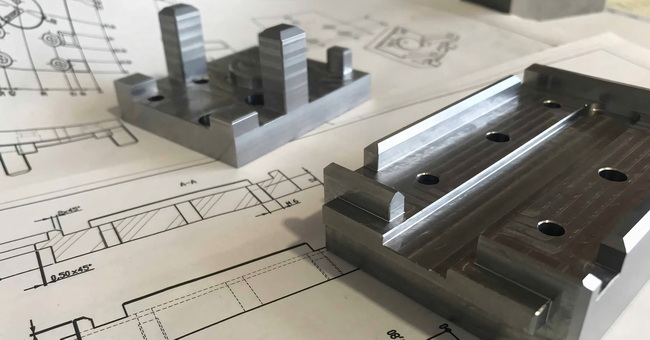
Once CAM work is complete, a post-processor converts generic toolpaths into G-code tailored to a specific controller.
- Controllers such as Mach3, LinuxCNC, and proprietary industrial systems execute G-code line by line.
- The machine operator sets work offsets, loads tools, confirms coolant and safety settings, and runs test cycles before full production.
With well-prepared G-code and a correct setup, the CNC machine can produce consistent, repeatable parts that match the intent of the CAD model.
Not all CAD platforms integrate with CNC workflows in the same way, especially regarding CAM features and export options.
CAD software | CAM integration | Typical export formats | Ease of use | Use case focus |
AutoCAD | Plug-ins required | DXF, DWG | Intermediate | 2D layouts and profiles for cutting |
Fusion 360 | Built-in CAM | STEP, direct G-code | Easy | Prototyping and small-batch CNC |
SolidWorks | With SolidCAM or add-ons | STEP, IGES | Pro-level | Complex mechanical parts |
FreeCAD | Basic CAM workbench | STEP, IGES | Beginner | Entry-level design and CNC |
Choosing tools that work well together from the start reduces friction, prevents data loss, and speeds up quoting and programming.
Strong design-for-machining (DFM) practices directly in the CAD stage unlock better quality, lower cost, and more predictable lead times.
- Use standard hole sizes compatible with common drill diameters to simplify tooling.
- Avoid very deep and narrow pockets that require long tools and extremely slow cutting.
- Add internal fillets where possible and align them with realistic cutter radii.
For precision parts, clearly define:
- Datum surfaces as reference points for machining and inspection.
- Critical tolerance zones where fit and performance are most sensitive.
- Extra allowance where post-machining finishing is required.
Well-planned DFM reduces the risk of redesigns and helps vendors propose optimal machining strategies.
Selecting the right material is as important as the CAD to CNC workflow, especially when combining metal, plastic, and silicone components in one product.
- Metals: Aluminum, stainless steel, carbon steel, brass, and copper for structural and thermal applications.
- Engineering plastics: ABS, POM, PC, PA, and PEEK for lightweight or insulating parts.
- Silicone: Suitable for seals, gaskets, and soft-touch components, often produced by molding using CNC-machined tooling.
Matching material properties to mechanical, thermal, and environmental requirements ensures the final part performs well in real use.
Products that combine high-precision machined components, plastic parts, silicone elements, and stamped metal pieces benefit from an integrated manufacturing approach.
An experienced OEM partner can:
- Coordinate CNC machining, plastic production, silicone molding, and metal stamping in a single workflow.
- Ensure tolerance compatibility across different processes and materials.
- Streamline logistics from prototype to mass production.
This integration reduces handoffs, accelerates development cycles, and supports scalable production for international brands and wholesalers.
User experience is not limited to digital interfaces; it also applies to how teams manage information and collaboration in engineering projects.
- Maintain organized, version-controlled CAD files and drawings.
- Use clear file naming conventions for STEP, DXF, and related documents.
- Define expectations for surface finish, inspection reports, labeling, and packaging before production starts.
These steps reduce misunderstandings, simplify change management, and help everyone work from the same, up-to-date data.
Before sending your project to a manufacturing partner, use this checklist to confirm readiness.
1. Model quality: Closed solid model without open edges or geometry errors.
2. File format: Exported as STEP for 3D or DXF for 2D, as agreed in advance.
3. Technical drawings: Key dimensions, tolerances, threads, and surface finishes are documented.
4. Material definition: Exact metal or plastic grade is specified.
5. Quantity and timeline: Prototype, pilot run, and mass production quantities are clear.
6. Special processes: Heat treatment, anodizing, painting, or plating requirements are noted on the request.
Providing this information upfront leads to faster quotations, fewer questions, and a smoother path into production.
If you already have CAD files and a clear product idea but still face uncertainty around file formats, machining strategy, or multi-process production, now is the time to move forward. By preparing clean 3D models, choosing the right formats, and clarifying materials, tolerances, and quantities, you can turn digital designs into reliable, high-precision parts that are ready for the global market.
Reach out to a specialized OEM manufacturing partner, share your STEP, IGES, DWG, or DXF files, and request a focused review of manufacturability, cost, and lead time. With the right support, your project can move quickly from concept to CNC machining, plastic production, silicone components, and stamped metal parts, all aligned to your brand's quality and delivery expectations.

CNC machines execute G-code files (often with .nc or .tap extensions) that control movements, spindle speeds, and cutting cycles.
Direct transfer is not typical; usually you export a DXF file from AutoCAD, import it into CAM software, and then generate G-code for the CNC controller.
For most CNC machining, STEP is the most reliable choice, IGES is acceptable but older, and STL is better suited to 3D printing rather than subtractive machining.
Many beginners choose Fusion 360 because it combines CAD modeling and CAM toolpath generation in one platform and can output G-code directly for a wide range of machines.
You import the CAD model into a CAM program, define toolpaths, feeds, and speeds, and then export the program as G-code compatible with your specific CNC machine and controller.


